Settings: Positioning
Use  Settings > Positioning to configure
localisation startup behavior, vehicle control points, diagnostics and
pedestrian detection.
Settings > Positioning to configure
localisation startup behavior, vehicle control points, diagnostics and
pedestrian detection.
Localisation on Boot
Enable Start Localisation on Boot when the device should start localisation automatically after boot.
When this setting is enabled, select the Map to use and click Save Changes.
If a map is uploaded through Map Management, the web interface can also prompt you to set the uploaded map as the default map for Localisation on Boot.
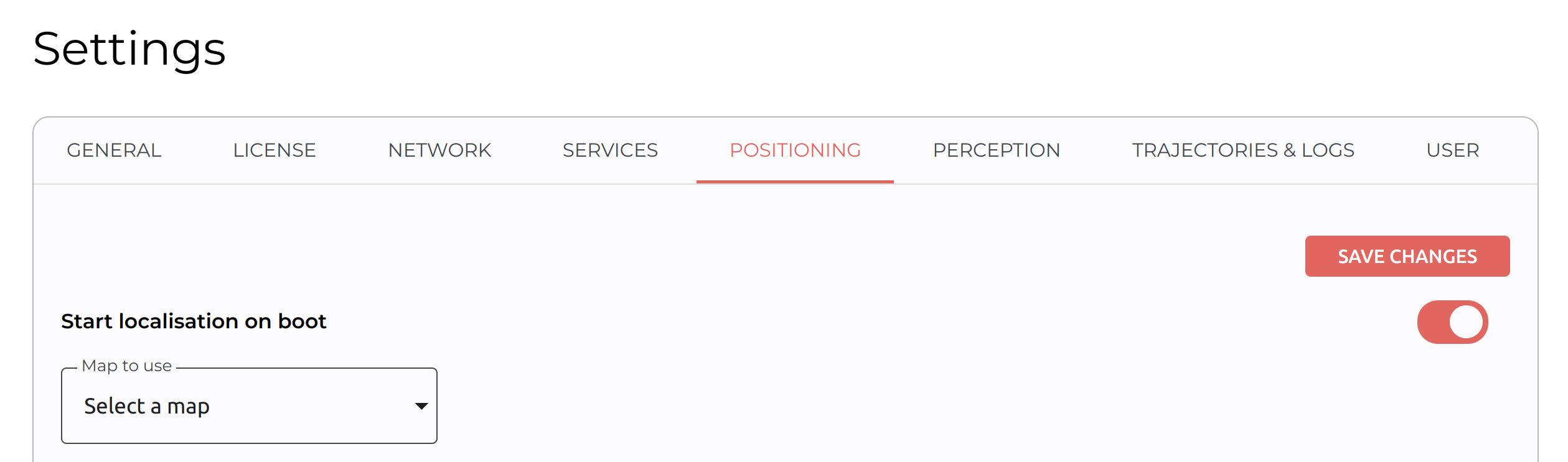
Reboot the device to start localisation automatically or follow the steps below to start localisation manually.
Disable Automatic Map Updates
Disable Automatic Map Updates (Not Recommended) prevents the device from saving automatic map updates during normal localisation operation.
Automatic map updates help keep a map current in dynamic environments. Leave this setting disabled unless Slamcore support or your deployment procedure requires automatic updates to be disabled.
Control Points
The Control Points section defines the vehicle-relative points used by Slamcore Aware.
Use it to configure:
- Vehicle Tracking Point - the point on the vehicle used for reported pose.
- Cam2 - the second camera position and yaw relative to Cam1.
- Alert Zone - caution and danger distances, shown when alert hardware is enabled.
Click Save Changes after editing values. Use the reset button to restore default values.
See Setting the Vehicle dimensions and center position and Configuring the second sensor (Cam2) for detailed
tracking point and Cam2 setup guidance.
Diagnostics
Use Save Visual Data in Sensor Data Logs to include visual sensor data when recording sensor data logs.
See Saving Additional Sensor Data for the full sensor data logging workflow.
Pedestrian Detection
Use Pedestrian Detection to enable or disable on-device pedestrian detection.
When enabled, pedestrians are shown in the Positioning visualisation during operation, along with the distance to the closest detected pedestrian.
See Pedestrian Detection for the full pedestrian detection guide.