Saving Additional Sensor Data
The system provides an option to save the live camera and IMU sensor data to device or external storage connected over USB for debugging, reporting and testing purposes.
The system will only target device storage for recording if there is no external storage connected when mapping or localisation is started.
For external storage only, the system provides an option to include visual information in recorded logs. To do so:
- On the web interface, select
 Settings
from the left panel > POSITIONING tab, Diagnostics
section.
Settings
from the left panel > POSITIONING tab, Diagnostics
section. - Toggle the option Save Visual Data in Sensor Data Logs.
- Click SAVE CHANGES to save the setting.
Recording to External Storage
To save sensor data logs to external storage:
- Connect an external SSD to the USB-C DATA port using a high
speed data transfer USB-C cable. A notification will be shown if the
SSD has been connected successfully.
- To ensure the SSD is mounted correctly, it must be formatted as described in the Formatting a Drive for Data Export guide.
- If using a USB-C 3.2 cable, if no notification is shown after connecting the drive, please try rotating the cable and inserting it in the other orientation then refresh the page.
- Once a notification appears to confirm the drive has been connected successfully, press START LOCALISATION or START MAPPING. If a run was in progress when the drive was connected, please ensure you stop and start it again to enable recording to the external drive.
Only sensor logs will be saved on the external storage. Trajectory data and the other system logs related to the run will be saved on device. See the Trajectories and Logs section for further details on what is captured on device for each run.
A high write speed SSD with a minimum of 500GB of storage is recommended for capturing sensor data logs. Less storage is required if visual data is not included.
Do not disconnect the SSD while recording is in progress. Doing so may result in loss of recorded data, and damage the drive.
Recording to an external drive increases power draw on the device. As a result, if the main power source is removed whilst recording data to an external drive, the device may not be able to shutdown gracefully due to the increased demand on the internal batteries. If this occurs,
- The interrupted run in the Trajectories and Logs table will appear with Error status.
- The recorded sensor data may have corrupted samples at end. Nonetheless, the data will still be usable.
To mitigate this issue:
- Consider disabling Pedestrian Detection from Settings > Positioning > Pedestrian Detection to decrease overall device power consumption.
- Consider using a powered external drive e.g. an SSD with a power bank providing input power.
Recording to Device Storage
To save sensor logs to device storage:
- Make sure external storage is not connected to the device. Press START LOCALISATION or START MAPPING. If a run was in progress when external storage was disconnect, stop and restart the run.
Saving Sensor Logs
Sensor logs are saved on user request only while localisation or mapping is in progress. To request a recording:
- Open the Live Run Controls panel by clicking on its icon located on the right hand side of the screen.
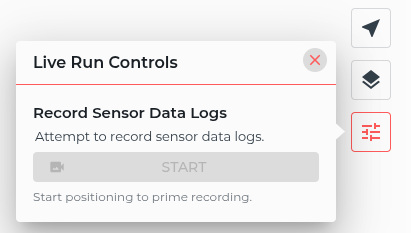
- The Start button under Record Sensor Data Logs is only enabled when localisation or mapping is running. Pressing the button will instantly start recording the sensor data logs to the target storage.
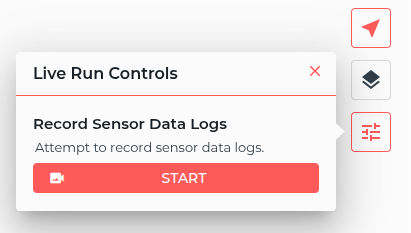
The target storage should have at least 5GB of free space for the recording to start successfully.
- To stop recording sensor data press the Stop button. Alternatively, stopping the localisation or mapping run will automatically stop the recording. Should the target storage run out of free disk space the recording will stop automatically.
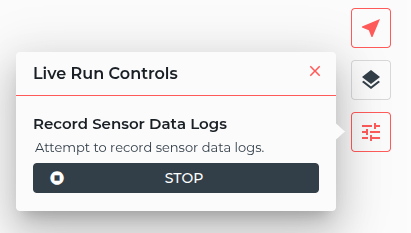
Steps 2 and 3 can be repeated multiple times while localisation or mapping is running.
Accessing and Sharing Saved Logs
When recording to external storage, the data is saved under
capture/<run-uuid> directly, where UUID is id assigned to the
localisation or mapping run for which the data was saved. The
information on runs can be found in the Trajectories & Logs page.
To inspect or share the data with Slamcore, once the run has been
stopped, disconnect the external drive and connect it to your computer.
To share it with Slamcore, package capture/<run-uuid> folder into a
single file, without compression. For example, on Linux you can use the
following command:
Additionally, download the corresponding run from the Trajectories & Logs page.
When sensor logs are recorded to the device storage, select Sensor Data Logs checkbox and download them from Trajectories & Logs page.
To share the data, upload all packages through Slamcore's secure MASV portal (https://slamcore.portal.massive.app/).