Troubleshooting
Networking Issues / Unable to connect to the Web Interface
The device hotspot network is not visible
If you cannot see the device's hotspot network from your computer, ensure the Wi-Fi antennas are installed on the device and you are near it when attempting to connect.
If the device was previously connected to a Wi-Fi network and you switched the device to Hotspot mode, you must connect to the hotspot Wi-Fi network and access the web interface within 15 minutes of activating hotspot mode to confirm you want to keep using hotspot mode. If no confirmation is made within 15 minutes, the device will revert to its previous network configuration.
If the network is still not visible, connect to the device over direct Ethernet connection as detailed in Direct Ethernet Network Connection and verify the device is in Hotspot Mode from the Network tab in the Settings page.
- If the device is not in Hotspot mode, activate the hotspot using the Activate Hotspot button.
- If the device is already in Hotspot mode, reboot the device using a 3
second press of the
RESETbutton on the device. Alternatively, remove the external power, wait for all LEDs to turn off (approximately 4 minutes), then restore the power.
I have connected to the device hotspot but cannot access the web interface
If you are connected to the device hotspot but the web interface is not visible on the browser, make sure you are accessing the device web interface using the correct IP address for Hotspot mode - 192.168.42.1.
If using the correct IP address but the web interface is still not
visible, attempt a hard refresh of the browser (Ctrl + Shift + R)
or try using a different browser.
If this still does not work, try to access the system report page at
192.168.42.1/reports/report on
your browser, copy the contents of the page to a .txt file and share
it with support@slamcore.com.
The device does not see my Wi-Fi network
If your network does not show up under the discovered networks list in the Settings > Network tab, ensure this network was active, within range and available before the device booted up. If the network was unavailable or out of range when the device was powered on, move the device within the network range and reboot the device to re-scan the available networks.
If operating in an area with high network congestion, contact support@slamcore.com for recommendations on how to improve network discoverability.
The device does not show up on my WiFi network after connecting it to the network
If the device was configured to connect to a Wi-Fi network but you cannot see the device on your network:
- Try to move the device closer to the network access point.
- The device may have reverted to Hotspot Mode. Connect to the device over direct Ethernet connection as detailed in Direct Ethernet Network Connection and try to connect to your Wi-Fi network again from the Network tab in the Settings page. Wait for a few seconds and the new IP address of the device on your Wi-Fi network should be shown in the web interface. Refresh the page or access the web interface through the new IP address within 15 minutes to confirm the network configuration.
- If the device is unable to connect to a previously configured network,
restart the device with a 3 second press of the
RESETbutton and wait 2 minutes for the device to reboot. Alternatively, remove the external power, wait for all LEDs to turn off (approximately 4 minutes), then restore the power.
If the previous steps do not resolve the issue, consult with your IT team to verify if device registration, certificates or IP reservation might be required for you network.
I can see the device on my Wi-Fi network but cannot access the web interface
If you can see the device on the network but can't access the web interface, make sure you are accessing the device web interface using the correct Wi-Fi IP address for the device. Consult your IT team on the IP address assigned to the device or connect to the device over direct Ethernet connection as detailed in Direct Ethernet Network Connection and then find the Wi-Fi IP address from the Network tab in the Settings page as explained in Connecting a device to your Wi-Fi Network. If you do not have an Ethernet cable available to connect to the device, other options to scan your Wi-Fi network and identify the device IP address are provided in Connecting a device to your Wi-Fi Network.
If using the correct IP address but the web interface is still not
visible, attempt a hard refresh of the browser (Ctrl + Shift + R)
or try using a different browser.
If this still does not work, try to access the system report page at
<device-ip-address>/reports/report on your browser, copy the contents
of the page to a .txt file and share it with support@slamcore.com.
I can see the device on my wired network but cannot access the web interface
If you can see the device on the network but can't access the web interface, make sure you are accessing the device web interface using the correct Ethernet IP address for the device. Consult your IT team on the IP address assigned to the device or connect to the device over Wi-Fi to find the Ethernet IP address from the Network tab in the Settings page as explained in Connecting a device to your Ethernet Network. If you cannot connect to the device over Wi-Fi, the Connecting a device to your Ethernet Network section also provides other options to scan your wired network and identify the device IP address.
If using the correct IP address but the web interface is still not
visible, attempt a hard refresh of the browser (Ctrl + Shift + R)
or try using a different browser.
If this still does not work, try to access the system report page at
<device-ip-address>/reports/report on your browser, copy the contents
of the page to a .txt file and share it with support@slamcore.com.
My computer will not connect to the device over Ethernet using Link-Local
Linux
If you're not able to connect to the device after following the instructions under Direct Ethernet Network Connection, you can try configuring your computer network settings to use a manually set static IP address.
Ensure an Ethernet cable is connected between the Slamcore Aware device
and your computer. Then on your computer's Network Manager, open the
Settings for your Wired Connection. Under the IPv4 tab, set the
IPv4 Method to Manual and add an address between 169.254.1.1 and
169.254.255.255 (Avoid 169.254.1.1 which is being used by the
Slamcore Aware device), for example, 169.254.1.3. Set the Netmask to
255.255.0.0 and leave the Gateway empty. Apply the settings.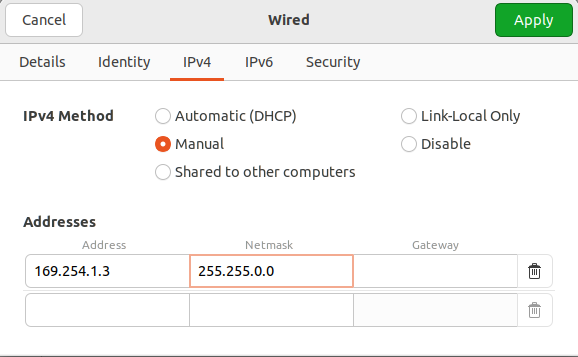
Once the Wired Connection shows as Connected, you should be able to
access the web interface at 169.254.1.1 .
Windows
If you're not able to connect to the device after following the instructions under Direct Ethernet Network Connection, you can try configuring your computer network settings to use a manually set static IP address.
Ensure an Ethernet cable is connected between the Slamcore Aware device
and your computer. Open Network & Internet Settings and go to the
Ethernet tab. Select Change adapter options from the right sidebar.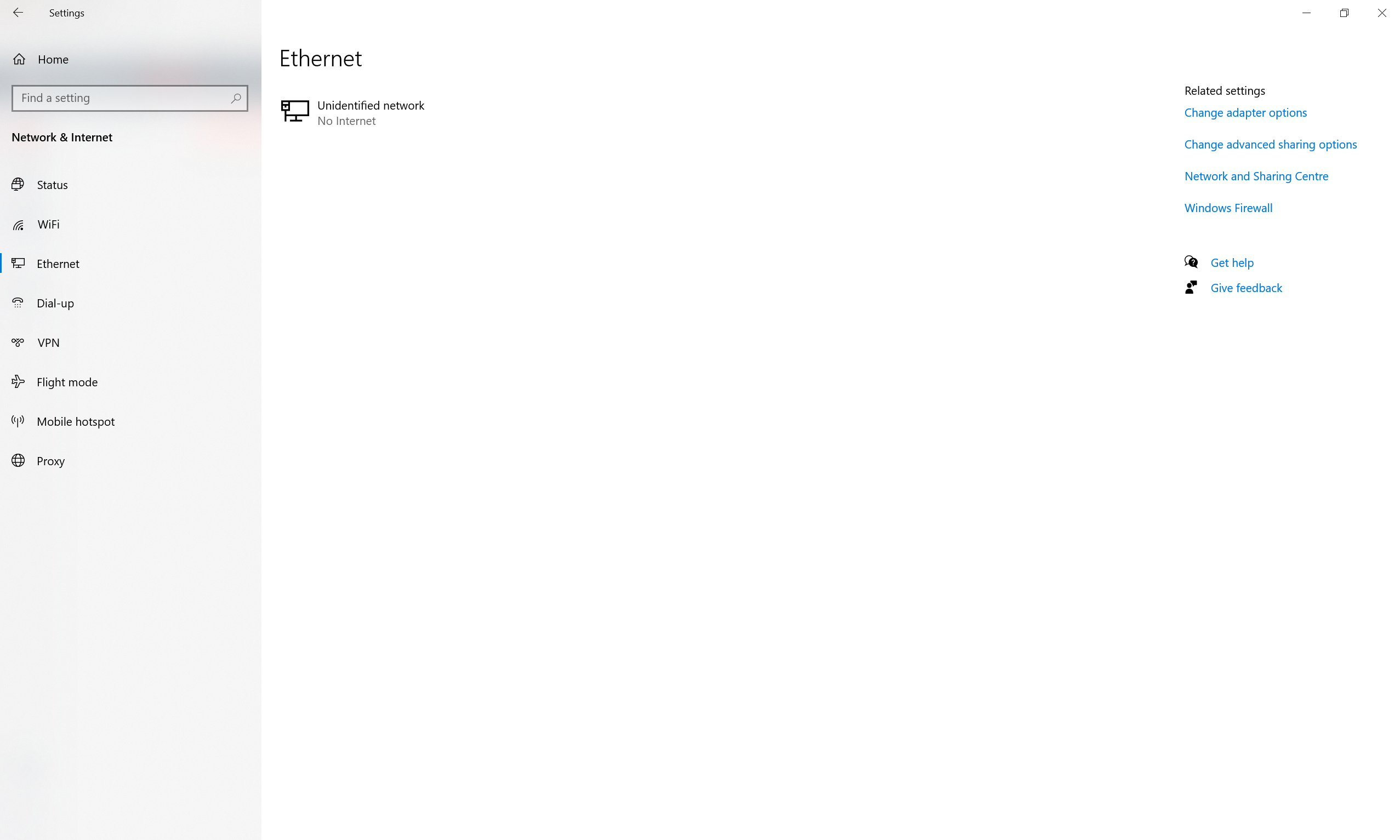
In the new window, select the Ethernet network and then click
Change settings of this connection from the top bar.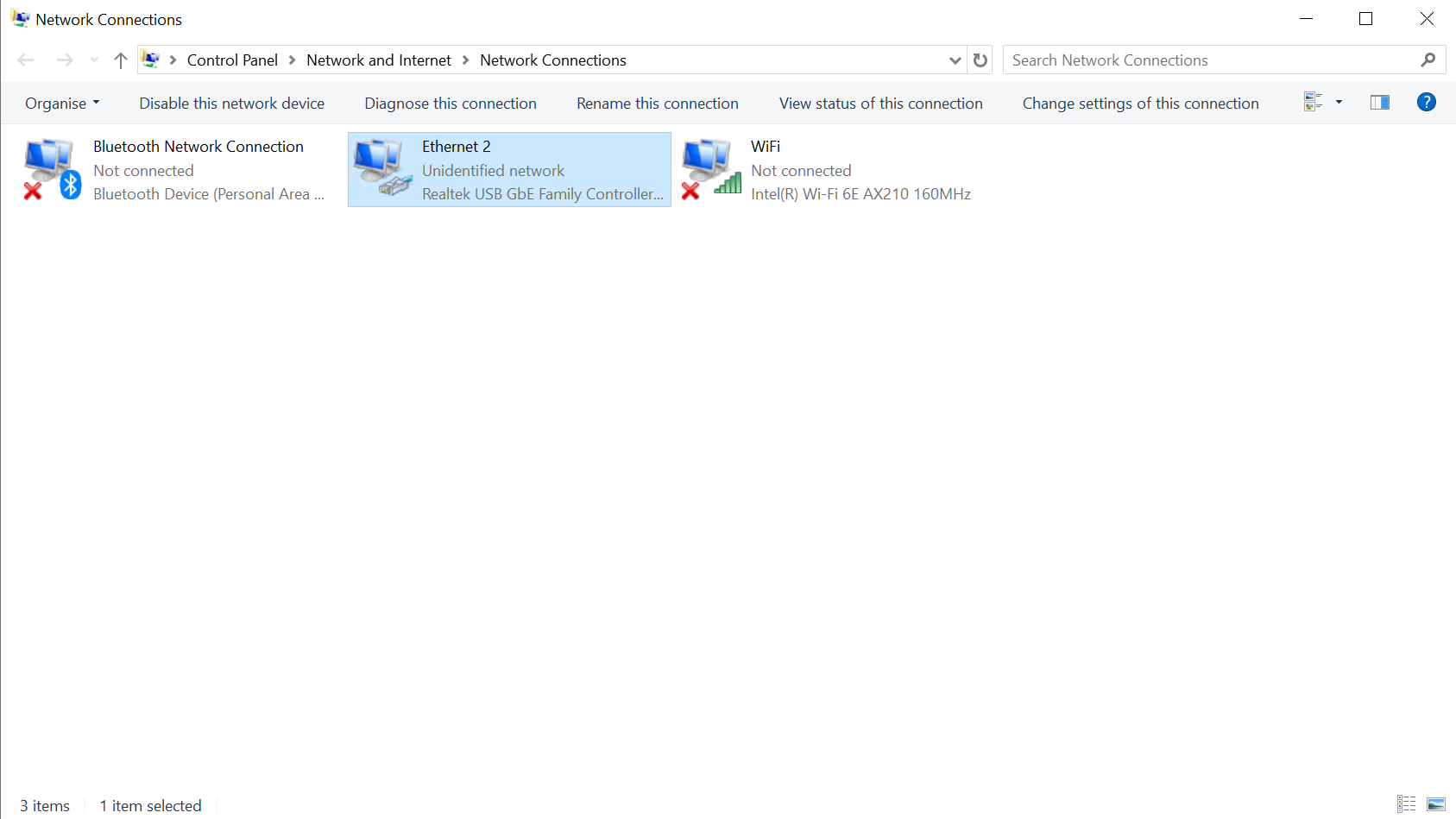
Click on Internet Protocol Version 4 (TCP/IPv4) and once it is
highlighted click on Properties.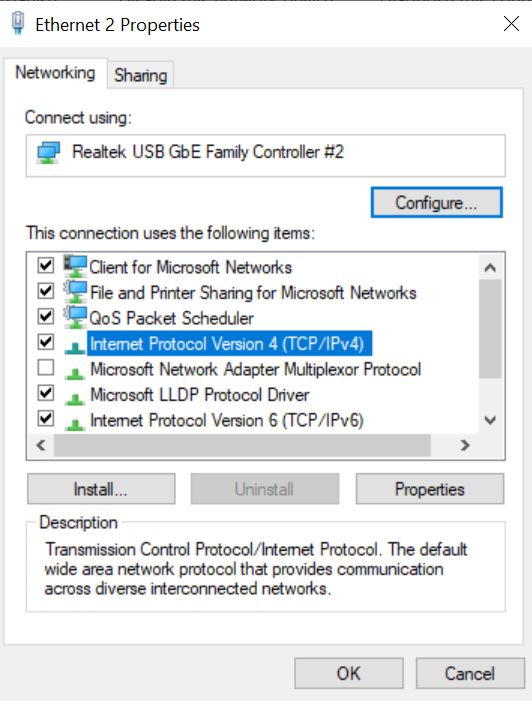
Select Use the following IP address and enter the manual IP address
details as shown in the image below. This step will assign a static IP
address to your computer. Also enter details for the DNS server as shown
below. Click OK and close the settings.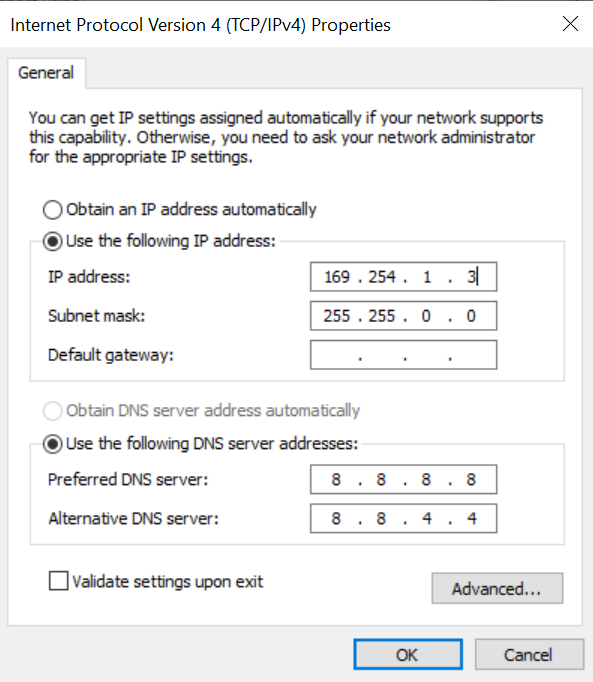
You should now be able to access the web interface through a browser at 169.254.1.1 .
Mac
If you're not able to connect to the device after following the instructions under Direct Ethernet Network Connection, you can try configuring your computer network settings to use a manually set static IP address.
Ensure an Ethernet cable is connected between the Slamcore Aware device
and your computer. Open System Settings, go to Network and identify
your Ethernet or USB network if using an Ethernet adapter. Click on
Details.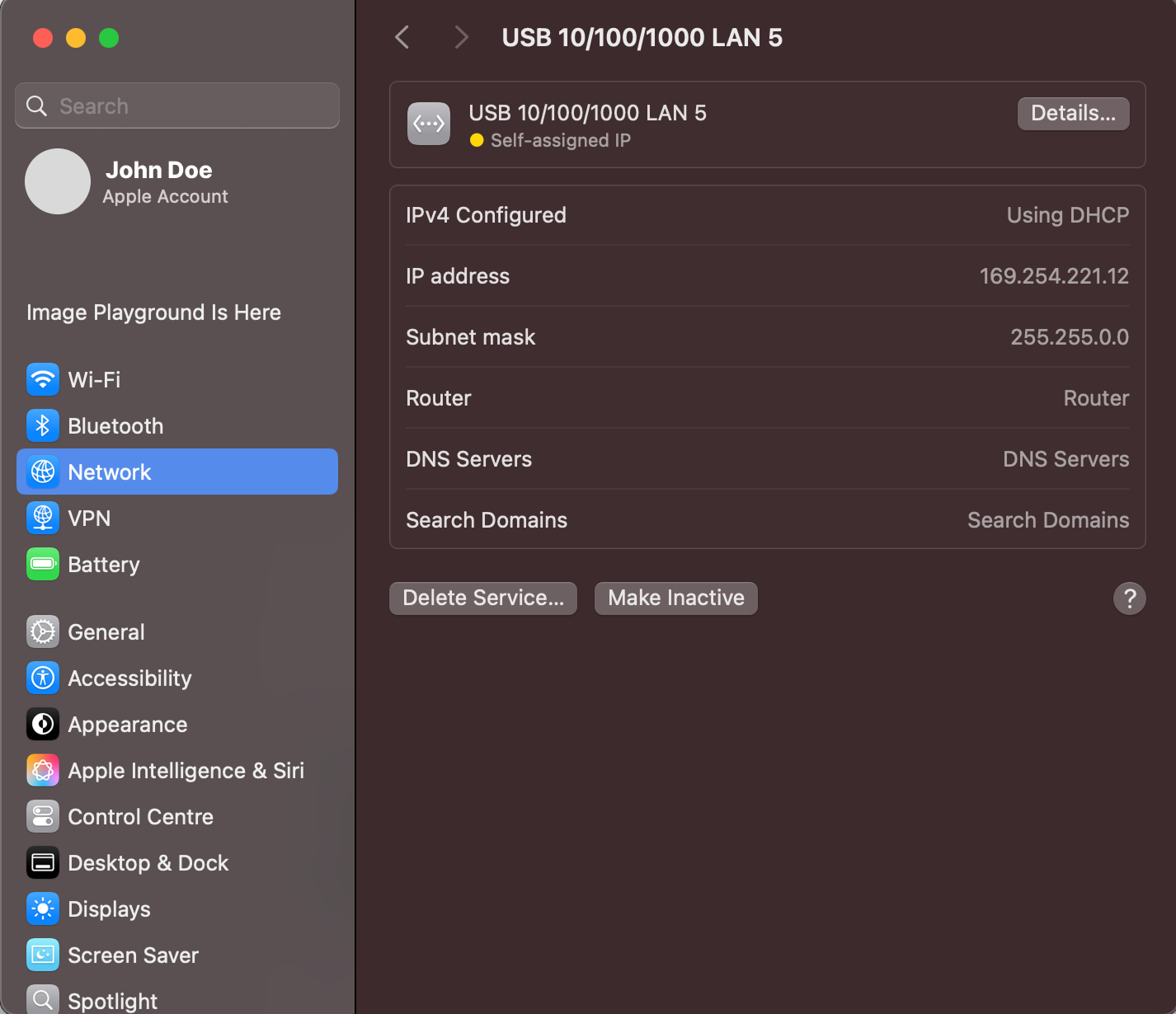
Under TCP/IP, set Configure IPv4 to Manually, set the IP address
to 169.254.1.3 and the subnet mask to 255.255.0.0. Click OK.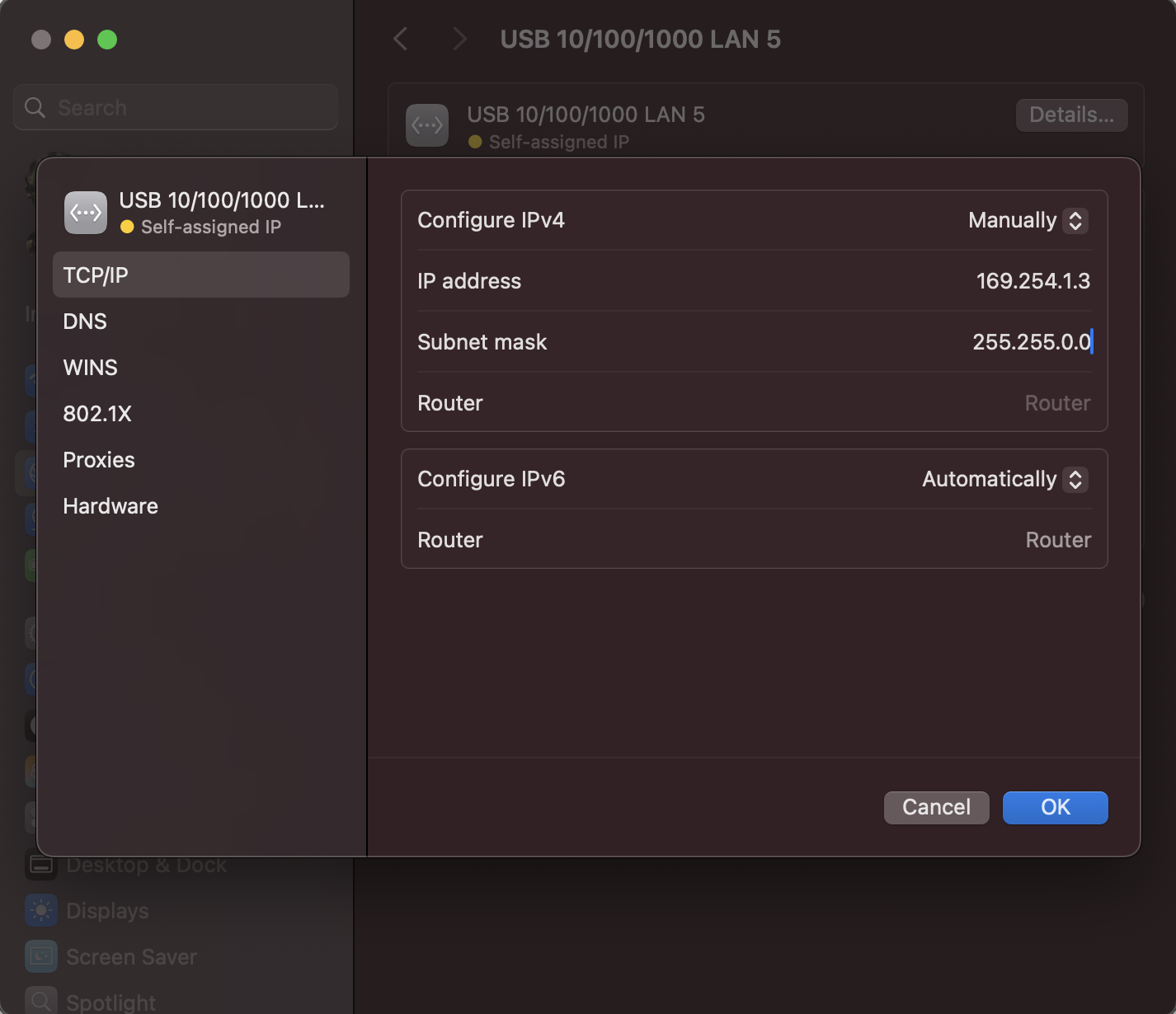
You should now be able to access the web interface through a browser at 169.254.1.1 .
System Issues
The device is in Error state and I cannot start localisation / mapping
If the device is in ERROR state, hover over the system state field in
the top status bar. A tooltip should appear providing more details on
the system error. In addition, if you attempt to start positioning, a
notification will also be shown under the notifications panel providing
more details on the error.
Ensure that the sensor unit is connected correctly to the Cam1 port
and the cable is not damaged. The sensor unit must be plugged in before
powering on the device. If the sensor unit was connected after powering
on the device, please reboot the device by pressing the RESET button
for 3 seconds. Alternatively, remove the external power, wait for all
LEDs to turn off (approximately 4 minutes), then restore the power.
If the license is invalid, please make sure you are using the license file for the correct device and that it has not expired. Contact support@slamcore.com if a new license is required for your device.
The device is in Ready state but an error is shown when trying to start localisation / mapping
Check the error shown in the notifications panel and consult the other articles in this page for further details on how to resolve the issue.
If further support is required:
- Download the latest run from the Trajectories & Logs page to your computer.
- Access the system report page at
<device-ip-address>/reports/reporton your browser and copy the contents of the page to a.txtfile.
Share the above files with support@slamcore.com along with a brief description of your issue.
Mapping & Map Alignment Issues
The system shows "Disconnected from map - please return to a previously mapped area until this message disappears" during mapping
If
Disconnected from map - please return to a previously mapped area until this message disappears
is shown during mapping, this means the system lost tracking temporarily
during mapping and needs to relocalise in the map that was being
generated up to that point. This is to make sure the mapping process
generates a single map for a facility and not multiple disconnected
maps. Tracking loss can be caused by high vibration, moving objects
close to the sensor unit such as sliding doors and featureless
environments such as blank walls.
To clear this message and continue mapping, return to the previously mapped area until the system relocalises and the mapping quality bar reappears. If you are not able to relocalise in a previously mapped area within 2 minutes, a new map will need to be created.
The markers that were detected during the mapping process do not align well with the floor plan
If during the map alignment process the markers detected by the system do not align well with the floor plan:
- Verify the Slamcore Aware map looks visually correct with no potentially corrupted or skewed areas. If the trajectory or sparse points look incorrect, you can download the map and share it with support@slamcore.com for further investigation. Remap the environment following the Mapping Guidelines to ensure a good quality map.
- Verify the floor plan image is accurate. Floor plans may often be outdated, showing incorrect shelving and racking infrastructure, or contain incorrect facility dimensions. We recommend mounting the markers onto fixed infrastructure such as columns and next to doors which are easy to reference on a floor plan.
The detected markers are not shown on the map viewer
If during map alignment on the Map Management page, the Markers list shows multiple markers, however, these are not visible in the map viewer, ensure the floor plan scale factor has been set correctly. If the incorrect scale was set, it is possible the markers are being shown at a really small size and, therefore, you will need to zoom in to see them.
The map disappeared from the map viewer after placing a marker for alignment
It is possible that during map alignment, after placing two markers, the map viewer goes blank and the map disappears. Zoom out of the map viewer to find and reposition the map.
Positioning Issues
The system is constantly stuck in relocalising state
If the localisation status is constantly shown as Relocalising:
- Ensure the correct map has been selected and is being used for the area the vehicle is operating in.
- Ensure the sensor unit is mounted in a similar location that was used during mapping.
- Ensure the sensor unit lenses are clear and the sensor unit is not obstructed.
- Ensure the device is operating in adequate lighting conditions, the system may not relocalise in dark environments.
- Drive the vehicle for a few minutes to help the system relocalise. Driving the vehicle near the mounted markers will help the system relocalise faster.
If a facility has changed significantly and the device has not been used for a long period, a new map may need to be generated.
If after the following recommendations the system is still not able to relocalise:
- Download the base map from the Map Management page to your computer.
- Download the map updates from the Map Management page to your computer.
- Download the latest 3 runs from the Trajectories & Logs page to your computer.
Share the above files with support@slamcore.com along with a brief description of your issue.
The system takes a long time to relocalise
If the system takes multiple minutes to relocalise:
- Ensure the correct map has been selected and is being used for the area the vehicle is operating in.
- Ensure the vehicle is starting up within a mapped area of the facility. It will not be able to relocalise outside of the map.
- Ensure the device is operating in adequate lighting conditions, the system may not relocalise in dark environments.
- Drive the vehicle for a few minutes to help the system relocalise. Driving the vehicle near the mounted markers will help the system relocalise faster.
If a facility has changed significantly and the device has not been used for a long period, a new map may need to be generated.
Share the above files with support@slamcore.com along with a brief description of your issue.
The system is showing the vehicle in an incorrect location
If the device is being shown in an incorrect location on the map:
- This may happen if the system detects a marker that has fallen and has been re-mounted in a different location to where it was originally mapped. Please ensure markers are correctly positioned and no duplicate markers are present in the facility.
- This may also happen if the system relocalises incorrectly due to a self-similar environment. Continue driving the vehicle around the facility and the device should automatically correct the issue. If the issue occurs frequently, remap the environment following the Mapping Guidelines to ensure a good quality map.
Share the above files with support@slamcore.com along with a brief description of your issue.
The positioning page keeps showing "Attempting to load floor plan"
If any changes are made to the map in the Map Management page whilst localisation is running, the map being used by the system will no longer match the latest saved map, preventing the floor plan image from being loaded. Restarting localisation should resolve the issue.
Share the above files with support@slamcore.com along with a brief description of your issue.
The markers keep shifting during localisation
If you notice the markers shifting during localisation, this is due to the fact that the system continues to refine and optimize the marker locations that were captured during mapping in localisation mode. If you see frequent flickering of the markers we would recommend generating a new map following the Mapping Guidelines to ensure a good quality map.
The device Memory Usage is constantly red during localisation
If the device Memory Usage indicator is red, this usually indicates the device has been operating uninterrupted for a long time, resulting in a large map currently being stored in memory. You may continue to operate the device normally.
VDA5050 Issues
The device shows "VDA5050 failed to connect"
If a notification is shown with VDA5050 failed to connect when
starting localisation:
- Ensure the MQTT broker being used is online and available.
- Verify the Slamcore Aware device VDA5050 configuration in the Settings > Integrations page. If you make any changes, ensure you click Save Changes at the top of the page. Then click Check Connection to verify the device is able to connect to the broker successfully. Feedback will be provided if the connection is unsuccessful.
If you're still unable to connect to the broker, share your VDA5050 settings and the output of the Check Connection action with support@slamcore.com.
I stopped receiving messages from the device on my MQTT broker
If you stop receiving messages from a device over VDA5050, ensure the device is still within network range and positioning is active.
If the broker became unavailable at any point, positioning will need to be restarted to reestablish a connection.
I changed the VDA5050 settings but these did not seem to take effect
Make sure you press Save Changes at the top of the Settings > Integrations page when making any changes to your VDA5050 configuration. If you make any changes whilst positioning is active, you will need to restart positioning for the changes to take effect.
License Issues
The device Licenses Status shows "Invalid License"
When the license status is Invalid, the system should be in ERROR
state and some feedback will be shown on why the license is invalid in
the Settings > License page.
- If the license has expired, please contact Slamcore to discuss license renewal.
- If the license file is invalid, please make sure you have uploaded the
correct
.jsonfile to the device. If this message persists please contact support@slamcore.com and attach the troublesome license file. - If the license file is not found, please upload a valid license file to the device and click Update.
- If the license file is for a different device, please upload the correct license file to the device and click Update.
- If the error shows
Device information is not available, please ensure the sensor unit is plugged into the device and reboot the device. Please refer to Device Reboot & Shutdown for details on rebooting the device.
Facility & Infrastructure Changes
A marker in the facility fell off or has gone missing
If a marker in your facility has fallen off, try to mount it close as possible to the original location. Remapping of the area is not required. If it is not possible to remount it, it is best to remove it rather than placing it in an incorrect location. The system will continue to operate normally even if a marker is no longer detected.
If the facility layout has changed and markers need to be remounted, a new map will need to be generated.
My facility layout changed
The Slamcore Aware system is robust to dynamic and changing environments, with automatic map updates happening during normal operation. However, if your facility layout changes significantly (e.g. racking units and parking bays in completely different locations), generating a new map is recommended to ensure optimal performance.
Hardware Issues
The red/green LED light keeps flashing after I pressed the RESET button
As explained in Hardware Interfaces, the flashing red/green LED indicates the device is operating normally.
After pressing the RESET button for 3 seconds, the device will shutdown, however, if power is connected to the device, it will immediately start up again. This is the reason why the red/green LED keeps flashing after shutting down.
To completely shut down the device, power will need to be removed, as explained in Device Reboot & Shutdown.