Formatting a Drive for Data Export
The Slamcore Aware device can export Trajectories & Logs data to an external drive over USB, however, this requires an appropriately formatted drive with a single exFAT partition. This guide will show you how to prepare one for data export.
USB storage devices that conform to the USB 3.2 Gen. 1 are compatible with the Slamcore Aware compute unit. Please contact Slamcore for a list of recommended devices.
USB 3.2 Gen 2 devices are currently not supported.
Windows
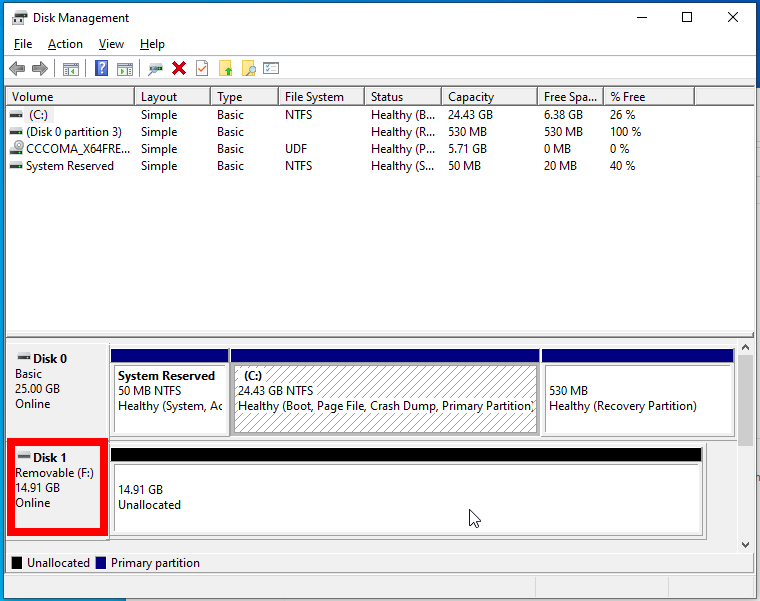
Please ensure all the following steps are carried out on the correct external drive and not on your machine's hard drive. In the bottom of the disk management you will see one of the disks labelled as “Removable”, this indicates it is a removable external drive and not the internal hard drive for your machine.
The following steps were tested using Windows 10.
1.1 Disk Management Tool
On the windows search bar, search for disk and select the option shown below.
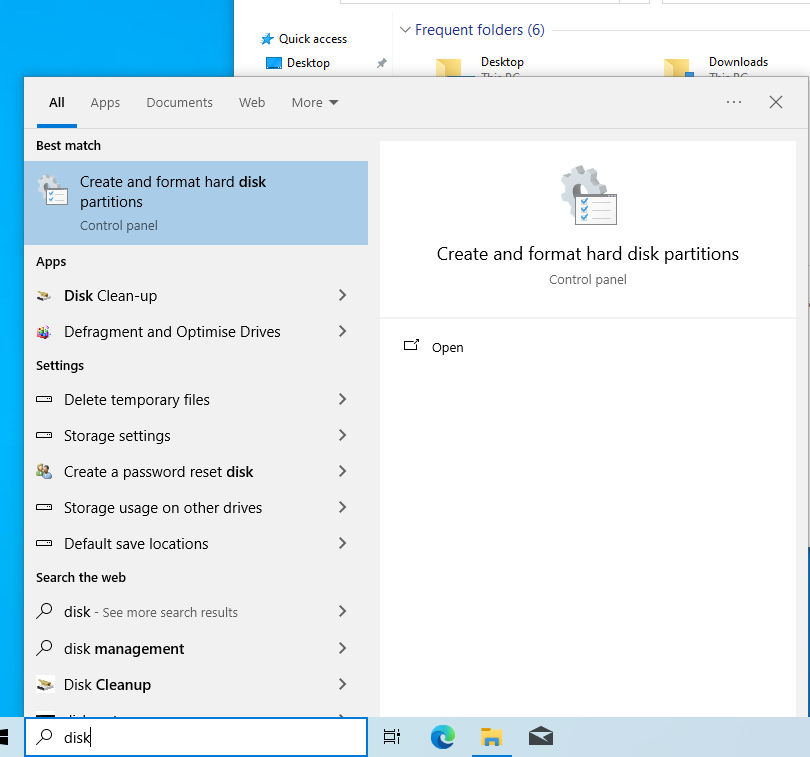
This should show a list of all the drives, including the inserted USB drive which should be tagged with "Removable".
1.2 Create Partition (Volume) - If None Exist
This step is only needed if the drive does not currently have a partition. If there is a partition, please skip to the next step.
Right click the unallocated space and press “Create New Simple Volume”.
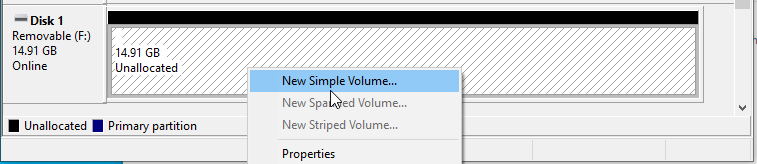
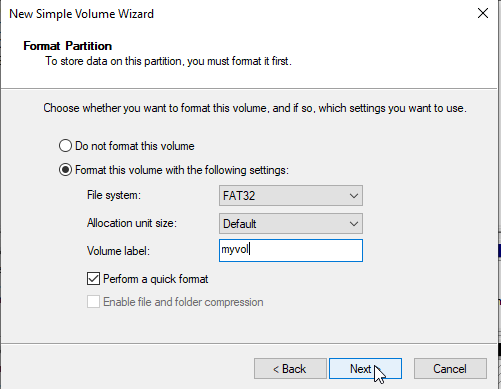
You may choose to select either option in the following dialogue box as we will be reformatting the partition (volume) after anyways.
1.3 Format Partition to exFAT
The data export process requires the external drive to have only one partition. If there are any additional partitions, please back them up elsewhere and then delete them by right clicking and then "Delete Volume".
At this point, the disk manager should show the external drive with one primary partition (either formatted or RAW format).

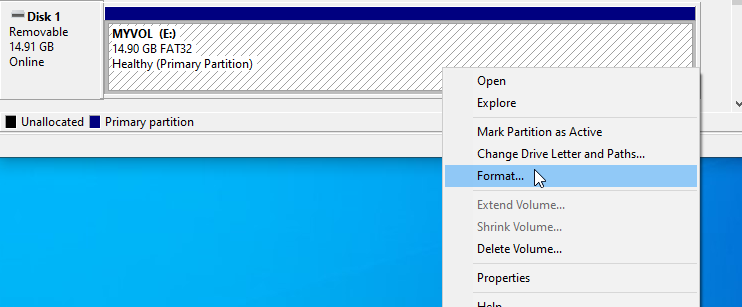
Right click the primary partition and select format.
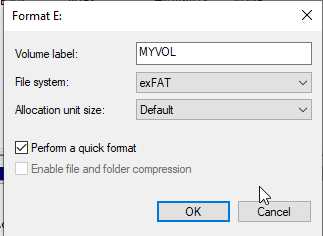
Name the partition (volume) appropriately, and change the file system to exFAT.
The drive should now show as properly formatted with the exFAT file system. It is now ready to be used with a Slamcore Aware device for data export using the web interface.

Linux (Ubuntu)
The following instructions are for Ubuntu 20.04 and Ubuntu 22.04.
Please ensure all the following steps are carried out on the correct external drive and not on your machine's hard drive.
1.1 Download Required Packages
Open up a terminal on your machine and run the commands corresponding to your ubuntu version.
To check your ubuntu version you can run the following command:
lsb_release -a | grep Description
Ubuntu 20.04
sudo apt install exfat-fuse exfat-utils
Ubuntu 22.04
sudo apt install exfat-fuse exfatprogs
1.2 Gnome Disk Utility Tool
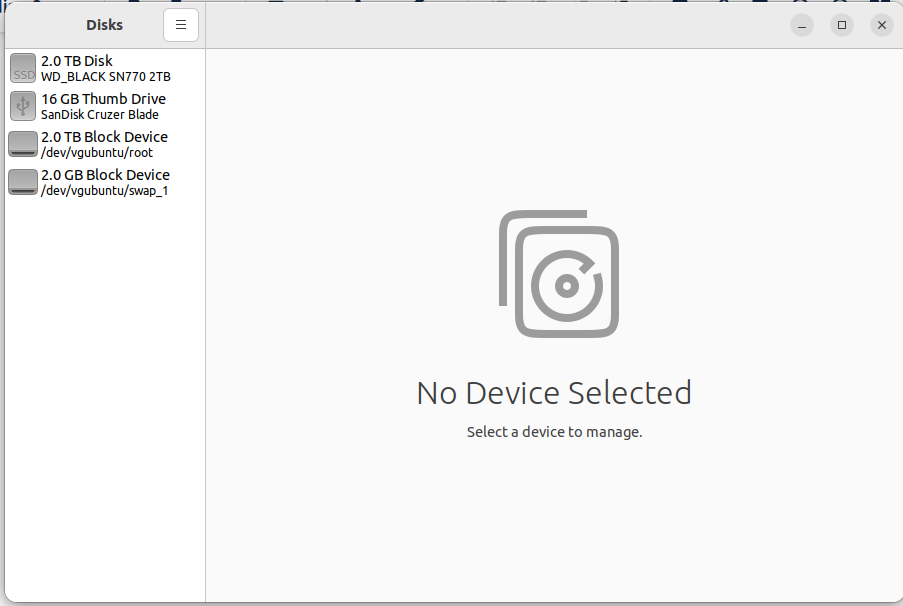
On the search menu type in disks to open up the Gnome Disk Utility Tool that comes with Ubuntu 20.04 and Ubuntu 22.04.
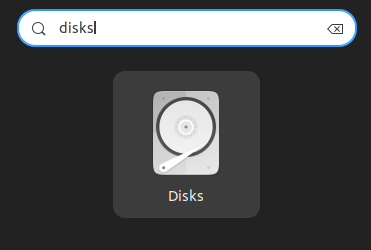
This will show up a list of all the connected drives.
1.3 Create Formatted Partition
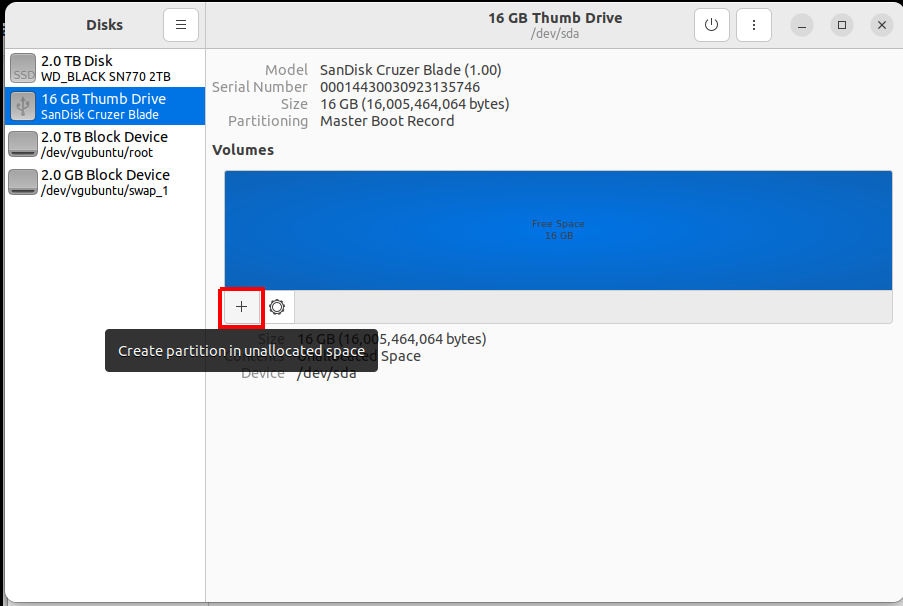
The data export process requires the external drive to have only one partition. If there are existing partitions at this stage, please back them up elsewhere and then delete them by selecting the partition and then pressing the minus in the bottom right.
Select the external storage drive and press the plus under it.
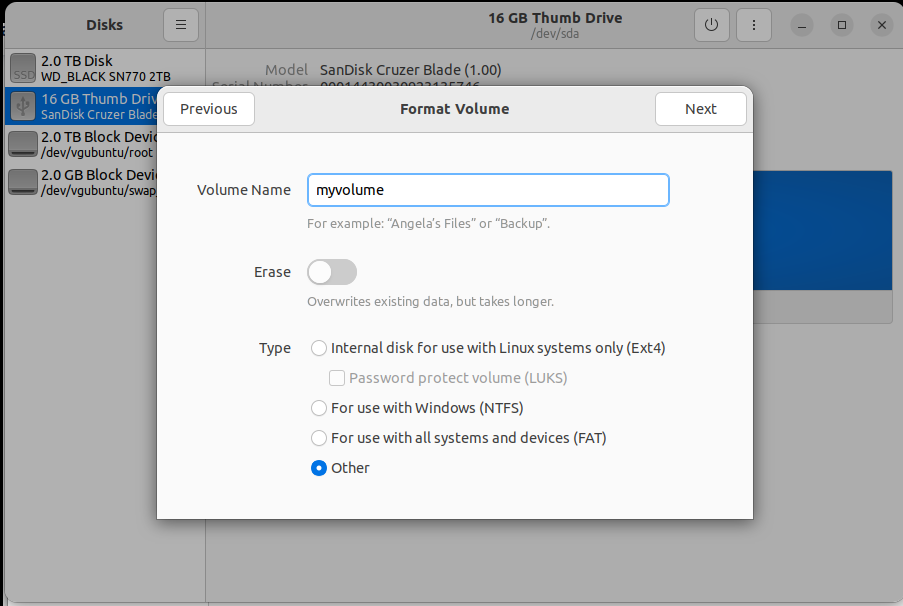
Give the volume an appropriate name, and make sure to select "Other" for the type.
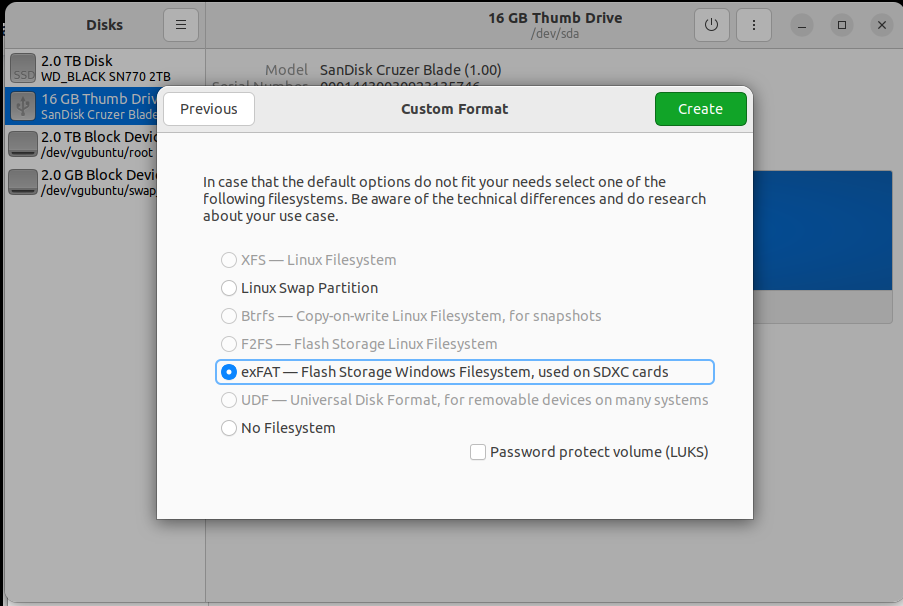
Select the exFAT option.
If the option is grayed out, please ensure you have downloaded the required packages from step 1.1 for your Ubuntu version.
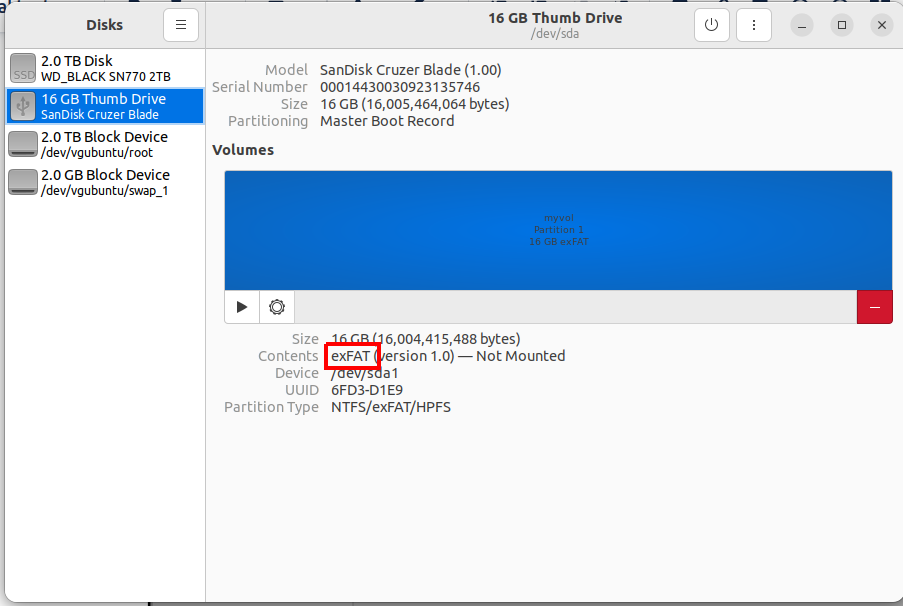
The drive should now show as properly formatted with the exFAT file system. It is now ready to be used with a Slamcore Aware device for data export using the web interface.