Local Network Connection
In the Default Network Connection section, we previously covered how to connect to the device directly using:
- Wi-Fi Hotspot Network Connection - The default Wi-Fi hotspot network hosted by the device
- Direct Ethernet Network Connection - A direct Ethernet connection between a device and a computer
However, a device can be configured to connect to a local Wi-Fi or Ethernet network, enabling integration with other applications on the same network and making management and monitoring of multiple devices at the same time much simpler.
Device Registration & DHCP Reservation on the Network
Before connecting a device to the network, many corporate networks will
require the device to first be registered on the network. If you plan on
connecting to a Wi-Fi network, provide your IT team with the device's
Wi-Fi MAC address, e.g. 00:1A:2B:3C:4D:5E to register the device on
the network. If you plan on connecting a device over Ethernet, provide
the Ethernet MAC address instead.
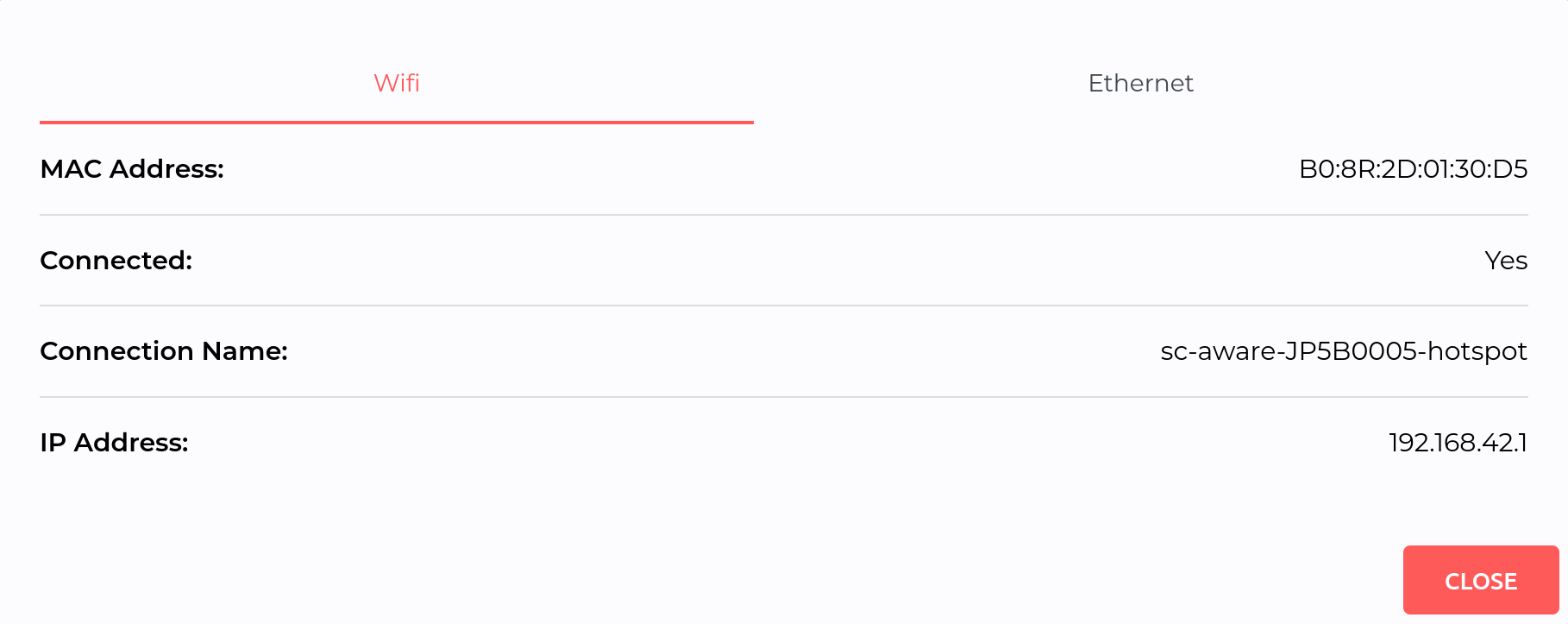
The MAC address is printed on the device box and/or can be found in the
web interface at Settings > Network > Click on the
 icon which brings up a window with the network
information. Select either the Wi-Fi or Ethernet tab, depending
on the desired network information:
icon which brings up a window with the network
information. Select either the Wi-Fi or Ethernet tab, depending
on the desired network information:
The device can be configured to have its IP address assigned either:
- Automatically by the network's DHCP server (Recommended)
- Manually to a static IP address set through the web interface
When using the automatic assignment option (DHCP server), the network will dynamically assign an IP address to the Slamcore Aware device. To ensure you can access the device at the same IP address each time the device boots up, we recommend you contact your IT team and request they set up a DHCP reservation for the device's MAC address.
Connecting a device to your Wi-Fi Network
If changing Wi-Fi settings through the web interface, we recommend connecting to the device over Ethernet, as explained in Direct Ethernet Network Connection. Changing Wi-Fi settings while connected to the device over Wi-Fi may disrupt your connection to the device as the device Wi-Fi IP address may change during the process.
When connecting the device to a new network, the device will stop broadcasting its Wi-Fi hotspot.
-
In the web interface, go to Settings > Network and select your network from the Select New Network drop-down.
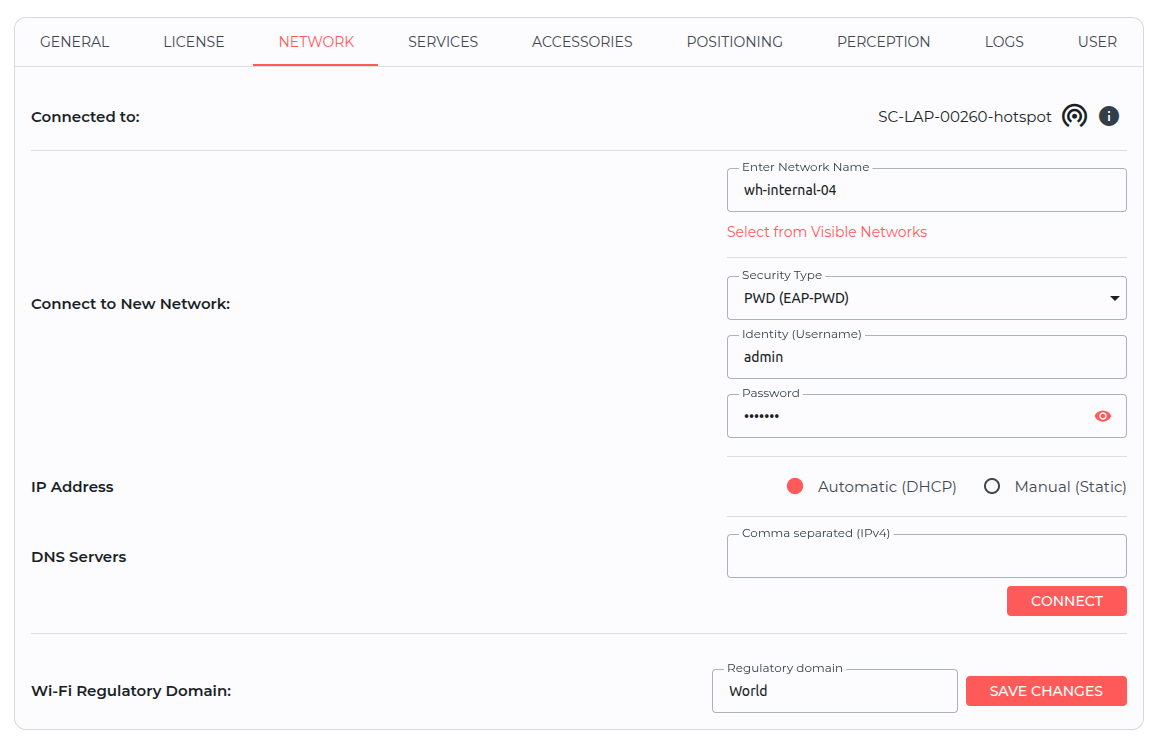
Network Setup Pane If the network does not appear in the list, you can manually enter the network SSID by clicking on Join Other Network. You can switch back to the drop-down list by clicking on Select from Visible Networks.
Select the appropriate security type and enter the network password if required. The Network tab also supports enterprise Wi-Fi security types such as EAP-TLS, EAP-PEAP and EAP-TTLS; see Settings: Network for the full list of fields.
Then select the preferred IP assignment method (DHCP or Static IP) and enter the device's static IP configuration (IP, Netmask, Gateway) if required.
noteIf using a static IP address, ensure the IP you assign falls within your network's IP address range (subnet), is not already in use, and is explicitly outside your network's DHCP allocation range to avoid potential IP address conflicts.
Optionally, enter custom comma separated DNS server addresses if required by your network.
Click CONNECT to proceed.
-
A modal will appear. To confirm the connection select SWITCH NETWORK.

- An info modal will appear whilst the network switch is in progress. The device's hotspot will deactivate.

If you were connected to the web interface using the device's Wi-Fi hotspot, the web interface will now be unresponsive as the device is now on a different network. If connected to the device over Ethernet, refresh the page to see the device's new assigned Wi-Fi IP address.
-
If using Wi-Fi, connect your computer to the same local network as the device.
-
On your computer, access the Slamcore Aware device with the new IP address it has been assigned to on your local network or if a DNS entry for the device has been configured on your local network, you can access the device via the hostname e.g.
http://sc-aware-<boxID>.To identify the Slamcore Aware device's new IP address, you can either:
- Connect to the device using a direct Ethernet connection as
explained in Direct Ethernet Network Connection. Once you have access to the
web interface over Ethernet, go to Settings > Network and
click on the icon next to the Wi-Fi network
name. This will open a modal with the network information and
current IP address of the device on the Wi-Fi network.
- Look for the device on your Wi-Fi router's admin page using its hostname or Wi-Fi MAC address.
Alternatively, if your computer is connected to the same Wi-Fi network, you can identify the device IP address on the network using command-line tools such as:
avahi-browseon Ubuntu (see Device Service Discovery on Ubuntu)dns-sdon Windows (see Device Service Discovery on Windows)
- Connect to the device using a direct Ethernet connection as
explained in Direct Ethernet Network Connection. Once you have access to the
web interface over Ethernet, go to Settings > Network and
click on the
-
Enter the new device Wi-Fi IP address in your browser to access the web interface. A modal should appear to confirm you want to keep this network configuration. If you do not confirm this change within 15 minutes, the device will revert to its previous network configuration.
Select KEEP to continue, or REVERT if you want to return to using the hotspot.
Additional Network Settings
After the device is connected to the correct network, check any site-specific settings required by your deployment:
- Set the Wi-Fi Regulatory Domain to the country where the device is operating.
- Add custom Network Time Protocol (NTP) Server entries if your facility uses internal time servers.
These settings are available in  Settings >
Network. See Wi-Fi Regulatory Domain and Network Time Protocol Servers for
details.
Settings >
Network. See Wi-Fi Regulatory Domain and Network Time Protocol Servers for
details.
Connecting a device to your Ethernet Network
No configuration is required to connect your device to a network over
Ethernet. Simply connect the device to a network router running a DHCP
server and the device should get an IP address assigned automatically by
the router (or a static IP address if DHCP reservation has been
configured using the device's Ethernet MAC address - The MAC address is
displayed on the outside of the device or under Settings >
Network > > Ethernet on the web
interface).
To identify the device's Ethernet IP address, you can either:
- Connect to the device over Wi-Fi. Once you have access to the web
interface over Wi-Fi, go to Settings > Network and click on
the icon next to the Wi-Fi network name. This
will open a modal with the network information. Switch to the
Ethernet tab and note down the IP address of the device on the
Ethernet network.
- Look for the device on your router's admin page using its hostname or Ethernet MAC address.
Alternatively, if your computer is connected to the same network, you can identify the device IP address on the network using command-line tools such as:
avahi-browseon Ubuntu (see Device Service Discovery on Ubuntu)dns-sdon Windows (see Device Service Discovery on Windows)
Device Service Discovery on Ubuntu
If your workstation is using Ubuntu, you can use a tool such as
avahi-browse to find the device on the network. Run in a terminal
window:
$ sudo apt install avahi-utils

$ avahi-browse -a -t -r | grep -A10 AWARE

+ wlp0s20f3 IPv6 sc-aware-jp4v0001 SLAMCORE_AWARE              Web Site             local
+ wlp0s20f3 IPv4 sc-aware-jp4v0001 SLAMCORE_AWARE              Web Site             local
= wlp0s20f3 IPv6 sc-aware-jp4v0001 SLAMCORE_AWARE              Web Site             local
   hostname = [sc-aware-jp4v0001.local]
   address = [fe80::e0c3:7e71:523e:d19a]
   port = [80]
   txt = []
= wlp0s20f3 IPv4 sc-aware-jp4v0001 SLAMCORE_AWARE              Web Site             local
   hostname = [sc-aware-jp4v0001.local]
   address = [192.168.0.201]
   port = [80]
   txt = []
Check for the Slamcore Aware device ID you want to connect to and access
it using the discovered IP address (IPv4), which is
http://192.168.0.201 in the example above.
Device Service Discovery on Windows
-
Install the DNS Service Discovery tool using the Bonjour service from Apple, i.e. iTunes on your Windows machine: https://support.apple.com/en-us/106372.
-
Run
dns-sdin a terminal window to discover the service:$ dns-sd -L "sc-aware-<device-ID> SLAMCORE_AWARE" _http._tcpLookup sc-aware-jp4v0001 SLAMCORE_AWARE._http._tcp.local21:17:08.137 sc-aware-jp4v0001\032SLAMCORE_AWARE._http._tcp.local. can be reached at \\sc-aware-jp4v0001.local.:80 (interface 14)
Access the web interface via a browser on your Windows machine as
provided, in the example above it's sc-aware-jp4v0001.local.
Reactivating Hotspot Mode or Connecting to a different Wi-Fi Network
It is possible to switch the device back to hotspot mode or connect it to a different Wi-Fi network.
To connect the device to a different network, please first switch it back to hotspot mode following the instructions below and then follow the same instructions as before under Local Network Connection.
When changing Wi-Fi settings, we recommend connecting to the device over Ethernet, as explained in Direct Ethernet Network Connection. Changing Wi-Fi settings while connected to the device over Wi-Fi may disrupt your connection to the device as the device Wi-Fi IP address may change during the process.
- To re-enable the device's hotspot network, go to Settings > Network and select the button to ACTIVATE HOTSPOT.
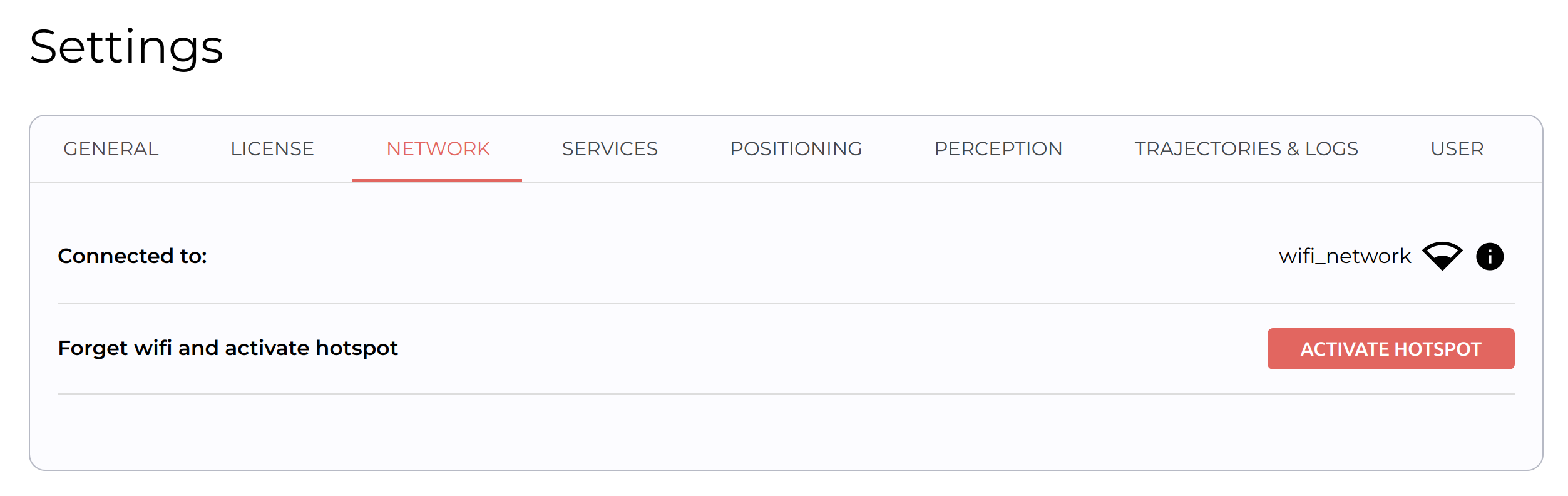
- Similar to when connecting it to the local network, you are required to confirm the change by selecting SWITCH NETWORK.

- Wait for the device's hotspot to be enabled.

- Once visible, connect your computer to the device's hotspot network and access the web interface at 192.168.42.1.
<!-- -->
- A modal should appear to confirm you want to keep this network configuration. Confirm by selecting KEEP. If you do not confirm this change within 15 minutes, the device will revert to its previous network configuration.
