VDA5050
VDA5050 is
an open standard for communication between AGV fleets and a central
master control, usually a fleet manager. The 2.0.0 version of this
standard is natively supported by Slamcore Aware, enabling a fast and
simple integration between Slamcore Aware and third party systems with
the purpose of allowing users to monitor manually guided vehicles in a
facility seamlessly.
VDA5050 uses JSON messages sent over MQTT Topics for communication. An MQTT broker is required to connect Slamcore Aware with the master control.
The official specification document for VDA5050 can be found at https://github.com/VDA5050/VDA5050/blob/release/2.1.0/VDA5050_EN.md
VDA5050 Topics and Messages
VDA5050 supports a number of different topics for communication.
Available topics are covered in https://github.com/VDA5050/VDA5050/blob/release/2.1.0/VDA5050_EN.md#65-topics-for-communication
Slamcore Aware publishes to the connection, state and
visualization topics.
The connection topic enables the master control (fleet manager) to
detect the vehicle's connection status with the MQTT broker. The state
topic is used to communicate the overall AGV state, state messages are
published with occurrence of relevant events or at the latest every 30s.
The visualization topic can be used for near real-time position updates,
this message contains the same positioning information as the state
topic but is published at a higher frequency.
Example message content published by Slamcore Aware is shown below. Note not all fields in a message may be populated.
Connection Message
All fields are populated. Manufacturer and SerialNumber can be set
in the Slamcore Aware VDA5050 settings.
{
    "headerId":0,
    "timestamp":"2024-08-14T16:13:38.986063Z",
    "version":"2.0.0",
    "manufacturer":"Slamcore",
    "serialNumber":"SC-LAP-00202",
    "connectionState":"ONLINE"
}
State Message
Live data is published in the header, driving, agvPosition, and
velocity fields. Other fields are empty or have placeholder data e.g.
batteryState.
loads field is conditionally populated when load detection sensor is
enabled, see details in Load
Detection section.
Note the driving flag is set based on the thresholds available under
Driving state in the Positioning tab of the Settings page (The default
thresholds are 1s movement timeout, 0.5m/s for linear velocity (for
each axes) and 0.05rad/s for angular velocity (for each axes).
Note the positionInitialized flag is set to True when the system has
relocalised on the map.
{
    "headerId":1,
    "timestamp":"2024-08-15T14:12:07.196380Z",
    "version":"2.0.0",
    "manufacturer":"Slamcore",
    "serialNumber":"SC-LAP-00202",
    "orderId":"",
    "orderUpdateId":0,
    "lastNodeId":"",
    "lastNodeSequenceId":0,
    "driving":false,
    "operatingMode":"MANUAL",
    "nodeStates":[

    ],
    "edgeStates":[

    ],
    "agvPosition":{
        "x":0.0003174958496715071,
        "y":0.00014522085300529145,
        "theta":-0.0002669197967105682,
        "mapId":"dataset_with_fiducials",
        "positionInitialized":false,
        "localizationScore":1.0
    },
    "velocity":{
        "vx":0.00023870712250831204,
        "vy":-0.0003285838557528985,
        "omega":-0.000027387174505402767
    },
    "loads":[

    ],
    "actionStates":[

    ],
    "batteryState":{
        "batteryCharge":0.0,
        "charging":false
    },
    "errors":[

    ],
    "safetyState":{
        "eStop":"NONE",
        "fieldViolation":false
    }
}
Visualization Message
All fields are populated.
Note the positionInitialized flag is set to True when the system has
relocalised on the map.
{
    "headerId":2,
    "timestamp":"2024-08-15T12:15:29.912029Z",
    "version":"2.0.0",
    "manufacturer":"Slamcore",
    "serialNumber":"SC-LAP-00202",
    "agvPosition":
    {
    "x":0.00003969906005146165,
    "y":0.00008901086901519631,
    "theta":0.00002634349343674802,
    "mapId":"dataset_with_fiducials",
    "positionInitialized":false,
    "localizationScore":0.0
    },
    "velocity":
    {
    "vx":0.0011625125154127933,
    "vy":0.0001592607690816649,
    "omega":-0.000022725268365876898
    }
}
Slamcore specific VDA5050 topics and messages
Aware Slamcore introduces a custom topic, perception for publishing
information on nearby objects (person, vehicle) detected by the system.
This topic is disabled by default and can be enabled from
 Settings > Integrations page.
Perception Message
All fields are populated. This messages carries a list of detected
objects at the time of publishing. If no objects are detected, the list
is empty. The location for each detected object is provided in two
different reference frames. world_location is reported in world
coordinate frame, the same reference frame the vehicle pose,
avgPosition is located in state message. Note that when system
is not localised, this field is empty. body_location is reported
relative to the vehicle based on the latest estimated pose. It is
reported in the frame defined by Vehicle Tracking Point setting, set
from Settings > Positioning page.
{
    "headerId":10,
    "timestamp":"2025-12-18T14:03:14.228706Z",
    "version":"2.0.0",
    "manufacturer":"Slamcore",
    "serialNumber":"sc-aware-jpah0005",
    "detections":
    [
        {
            "label":"Person",
            "world_location":
            {
                "x":-0.9514351499122923,
                "y":-0.3987028865113173
            },
            "body_location":
            {
                "x":3.6405984683845896,
                "y":2.9875839071762567
            }
        }
    ]
}
VDA5050 MQTT Broker
How does Slamcore Aware communicate with a third party system using VDA5050?
VDA5050 requires an MQTT broker, which will receive messages from Slamcore Aware and make them available to a third party application. The broker can run on a device on the local network or be hosted on the cloud.
An example broker that can be used is https://mosquitto.org .
To set this up, simply install it on a laptop or desktop computer:
sudo apt install mosquitto mosquitto-clients
Once installed, the mosquitto service should start automatically with default settings. You can check this is running with:
systemctl status mosquitto.service
If the service is not currently running, you can also start mosquitto manually from the command line:
user@SC-LAP-00252:~$ mosquitto
1724924957: mosquitto version 2.0.11 starting
1724924957: Using default config.
1724924957: Starting in local only mode. Connections will only be possible from clients running on this machine.
1724924957: Create a configuration file which defines a listener to allow remote access.
1724924957: For more details see https://mosquitto.org/documentation/authentication-methods/
1724924957: Opening ipv4 listen socket on port 1883.
1724924957: Opening ipv6 listen socket on port 1883.
1724924957: mosquitto version 2.0.11 running
The broker can be configured through the /etc/mosquitto/mosquitto.conf
file. Otherwise, with default settings you should be able to connect to
the broker using port 1883 of localhost on the machine that is running
the broker. To access the broker from the Slamcore Aware device, use the
same port but the IP address of the device running the broker. Further
details and an example are provided below.
Broker Security and Authentication
Currently it is possible to use a broker with no authentication, or with a TLS Client Certificate or Username/password authentication if additional security is required.
VDA5050 Settings Overview
VDA5050 can be enabled and configured through the Integrations tab of the Settings page. Enabling the VDA5050 toggle will reveal the configurable settings. The following settings are available.
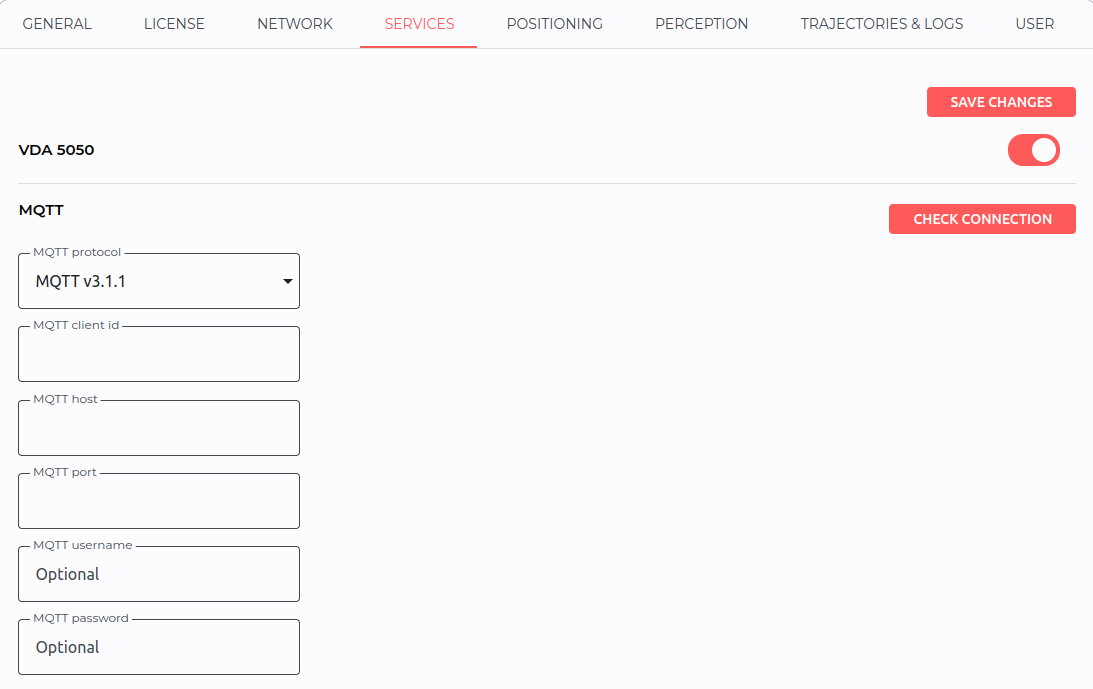
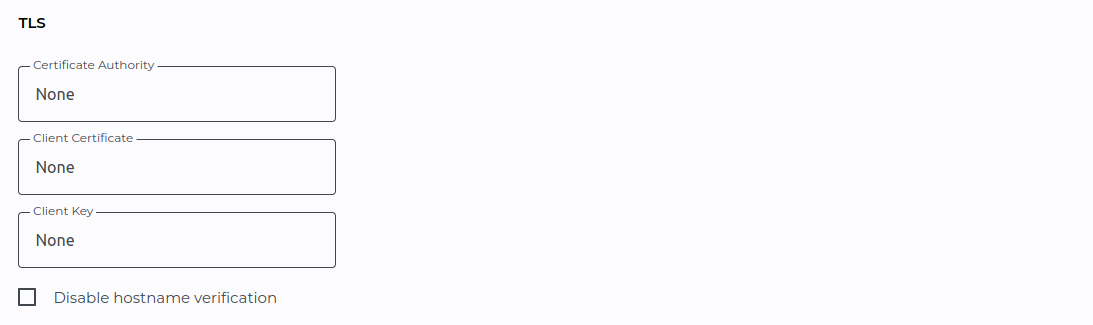
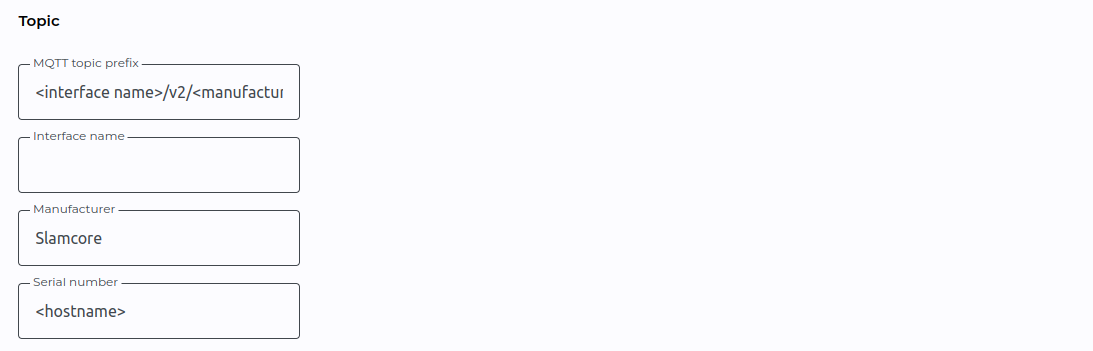
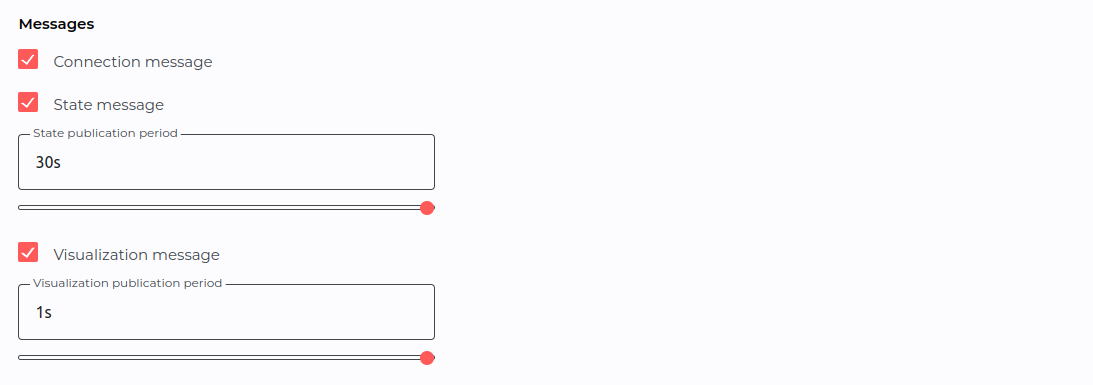
The following table provides a brief overview of the available settings, highlighting which ones are required for VDA5050 to work.
VDA5050 Settings
| Settings Field | Description | Required |
|---|---|---|
| MQTT Protocol | The MQTT protocol version should be set depending on the version supported by the MQTT broker. Mosquitto supports v3.1, v3.1.1. and v5. | Yes |
| MQTT Client ID | The Client ID must be set to something unique for each device, we recommend setting it to e.g. the device hostname or serial number. This helps the broker recognize when a client reconnects and it can close any old connections. | Yes |
| MQTT Host | The MQTT host should point to the address where the broker can be found. If running Mosquitto on a machine on the same network as Slamcore Aware, this should be set to the IP address of that machine. This field can also be set to a specific server address (e.g. AWS, Azure etc). | Yes |
| MQTT Port | The MQTT port should be set to the port which the broker is listening to. When running Mosquitto with default settings this should be set to 1883. | Yes |
| MQTT Username | Username for MQTT broker authentication. | No |
| MQTT Password | Password for MQTT broker authentication. | No |
| TLS Certificate Authority | Used to upload the certificate authority certificate (.pem file) when using TLS security/authentication. | No |
| TLS Client Certificate | Used to upload the unique Client Certificate for the device (.pem.crt file) when using TLS security/authentication. | No |
| TLS Client Key | Used to upload the unique Client Key for the device (.pem.key file) when using TLS security/authentication. | No |
| Disable hostname verification | Disable hostname verification against an uploaded certificate (Insecure). | No |
| MQTT Topic Prefix | Define what prefix will be used in front of each topic name. When inspecting the topic on the broker, this will show up as <topic_prefix>/<topic>. It is recommended to leave this field empty. | No (default will be used) |
| Interface Name | Used to populate the first part of the MQTT Topic Prefix (if this has not been set explicitly). This is used to help identify the interface being used for the topics. | Yes |
| Manufacturer | The Manufacturer field will be used to populate the MQTT Topic Prefix (if this has not been set explicitly) as well as the Manufacturer field inside the connection, state and visualization messages. This is set to Slamcore by default. | No (default will be used) |
| Serial Number | The Serial Number field will be used to populate the MQTT Topic Prefix (if this has not been set explicitly) as well as the Serial Number field inside the connection, state and visualization messages. This is set to the device’s hostname by default e.g. sc-aware-jp5b0003. | No (default will be used) |
| Connection message toggle | Disables the connection topic when unchecked. No messages will be published on that topic. | No (default will be used) |
| State message toggle | Disables the state topic when unchecked. No messages will be published on that topic. | No (default will be used) |
| State publication period | The State publication period slider allows users to adjust the frequency at which the state message is published. Defaults to 30s. | No (default will be used) |
| Visualization message toggle | Disables the visualization topic when unchecked. No messages will be published on that topic. | No (default will be used) |
| Visualization publication period | The Visualization publication period slider allows users to adjust the frequency at which the visualization message is published. Defaults to 1s. | No (default will be used) |
| Perception message toggle | Enables the custom perception topic when checked. When unchecked (the default), no messages will be published on that topic. | No (default will be used) |
| Perception publication period | The Perception publication period slider allows users to adjust the frequency at which the perception message is published. Defaults to 30s. | No (default will be used) |
Once the required settings have been completed, ensure you click Save
Changes at the top of the page to apply them. You can then check if the
system is able to connect with the broker successfully before starting
positioning by using the CHECK CONNECTION button on the top right of
the page. Whilst VDA5050 is enabled, Slamcore Aware will attempt to
establish a connection with the MQTT broker every time positioning is
started. The Notifications section of the positioning page will show if
the connection with the broker was established successfully
(VDA5050 Connected: Success) or not (VDA5050 failed to connect).
Example using Mosquitto
- Make sure the Mosquitto broker is running with default settings as explained earlier.
- Enable VDA5050 in the Slamcore Aware settings and set the following example values (dash “-” means leave empty/default):
Example Settings
| Settings Field | Value |
|---|---|
| MQTT Protocol | v5 |
| MQTT Client ID | slamcore-aware-device |
| MQTT Host | <IP address of machine running the broker> |
| MQTT Port | 1883 |
| MQTT Username | - |
| MQTT Password | - |
| TLS Certificate Authority | - |
| TLS Client Certificate | - |
| TLS Client Key | - |
| Disable hostname verification | - |
| MQTT Topic Prefix | - |
| Interface Name | slamcore-aware |
| Manufacturer | - |
| Serial Number | - |
| State publication period | 1s |
| Visualization publication period | 0.3s |
- Click Save Changes and head to the Positioning Page.
- Start Mapping or Localisation mode and ensure the Notifications show VDA5050 Connected: Success once the system is running.
- You can use something like https://mqtt-explorer.com or https://vda5050-visualizer.vercel.app to inspect the messages being published by Slamcore Aware. Further details are provided in the following sections.
Inspecting messages with MQTT Explorer
If using MQTT Explorer on the same machine that is running the broker, use the following settings to connect to the broker:
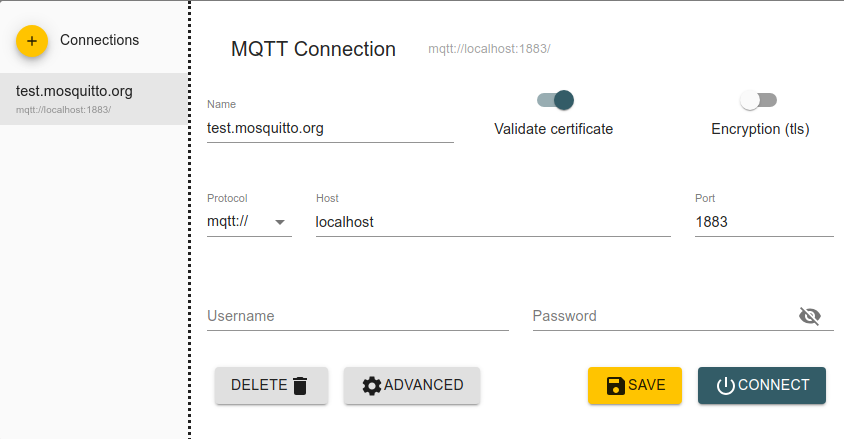
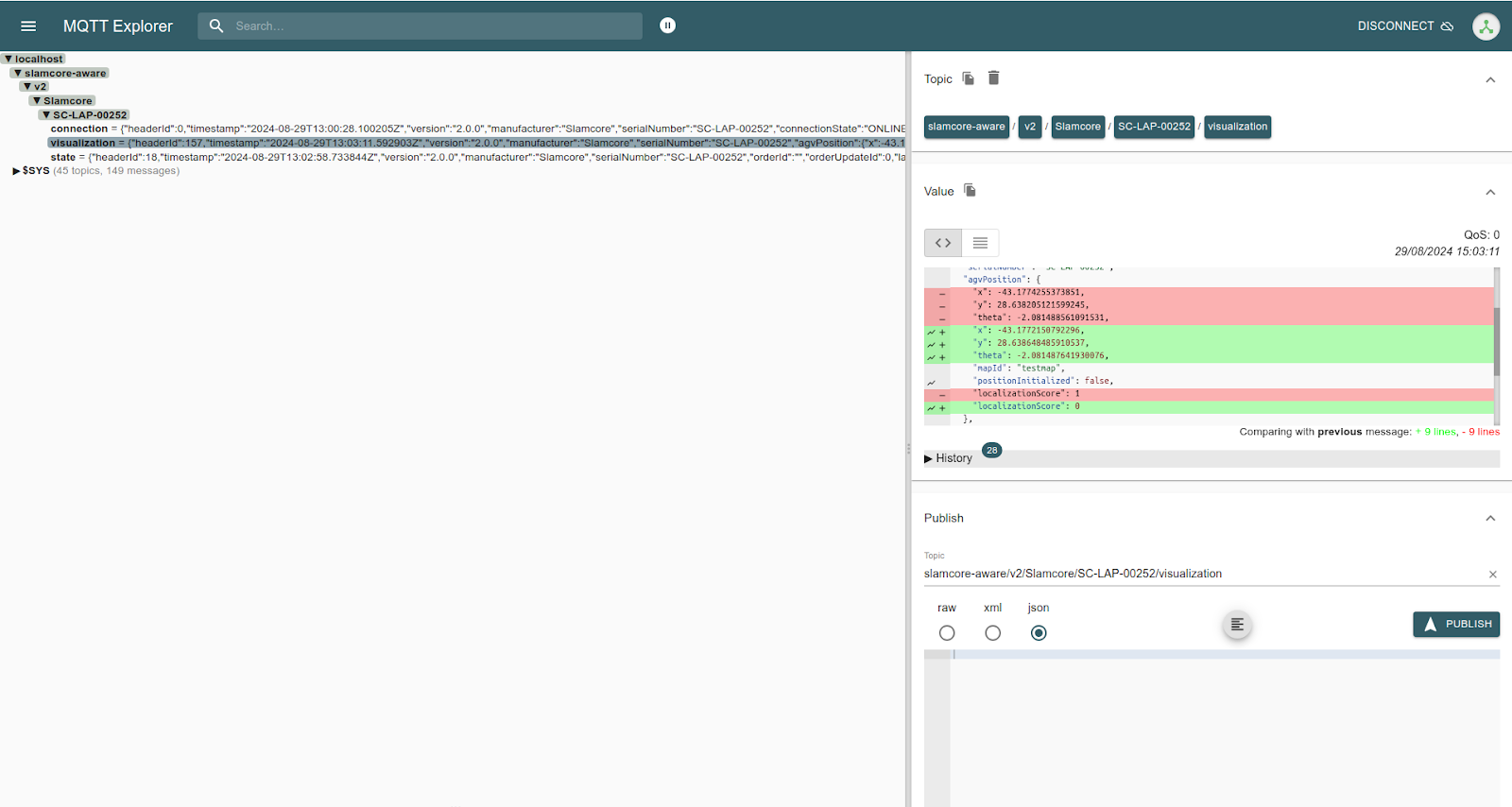
If running MQTT Explorer on a different device to the one running the broker, replace localhost with the IP address of the device running the broker. Once connected and if Slamcore Aware is running, you should be able to inspect the messages being published.
Inspecting messages with VDA5050 Visualizer
If using VDA5050 Visualizer,
first create the file /etc/mosquitto/conf.d/mosquitto_local.conf with
the contents shown further below. This is required because modern web
browsers cannot access the MQTT protocol directly. Therefore, the use of
web sockets must be enabled in the MQTT broker settings, as noted in the
VDA5050 Visualizer GitHub Readme - MQTT Broker
Settings.
per_listener_settings true
listener 1883
allow_anonymous true

listener 14520
protocol websockets
allow_anonymous true
Then stop and restart the broker with the new configuration.
mosquitto -c /etc/mosquitto/conf.d/mosquitto_local.conf
With the broker running, enter the following settings on VDA5050 Visualizer
VDA5050 Visualizer Settings
| Settings Field | Value |
|---|---|
| Broker IP | localhost (assuming the visualizer is running on the same machine as the broker) |
| Broker Port | 14520 |
| Basepath | slamcore-aware/v2/Slamcore/<replace-with-device-serial or hostname> |
| Interface Name | slamcore-aware |
| VDA Version | 2.0.0 |
You should start to see data at the bottom of the page. Note, nothing will be shown on the 2D canvas.